
How to scan documents with a phone
Start with a clear photo. OCR cannot read a clipped line or recover a word hidden by glare, so check each page before putting your phone away.
Prepare the page and camera
Put the page on a flat surface that contrasts with the paper. Clean the camera lens and use the rear camera. Move the phone closer rather than using digital zoom. For a bound document, support the pages so words near the spine stay visible without forcing the book flat.
Keep the original photo at its normal resolution. A screenshot or a copy sent through a messaging app may lose the detail needed to read small print.
Use even lighting
Use bright, even light. Move the page or the light until there is no glare, and check that the phone is not casting a shadow over the words. Glossy paper may need a different angle to the light.
Tap the page to focus and hold the phone steady. If small letters look blurred or faint print disappears, adjust the light or distance and take another photo.
Frame the whole page
Hold the phone parallel to the paper and include a narrow border around all four edges. Straightening can correct a sloping page; it cannot bring back a page number or handwritten note that was cut off.
For several pages, keep the phone at roughly the same distance and use the same lighting. The pages will be easier to read together.
- Include every corner and a small area beyond the paper.
- Keep the top and bottom edges close to parallel in the photo.
- Retake pages with blur, glare, deep shadow or covered corners.
- Keep the clearest version of each page and remove accidental duplicates.
Inspect each capture
Zoom into the smallest text instead of judging the thumbnail. Look for missing digits, decimal points, faint pencil marks and anything near the page edges.
Keep the original photo alongside any cropped or enhanced version. A filter that makes black print clearer can also remove a pale stamp or a handwritten note.
Try one difficult page before a long batch
Choose a page with small print, a table or handwriting. Make a one-page PDF and open it to check those details. If you need searchable text, test OCR too. Adjust your setup before photographing the rest.
Count the pages and keep them in order as you go. If you are uploading the PDF to a form or application, check its file-size limit before creating the full document.
Assemble the PDF
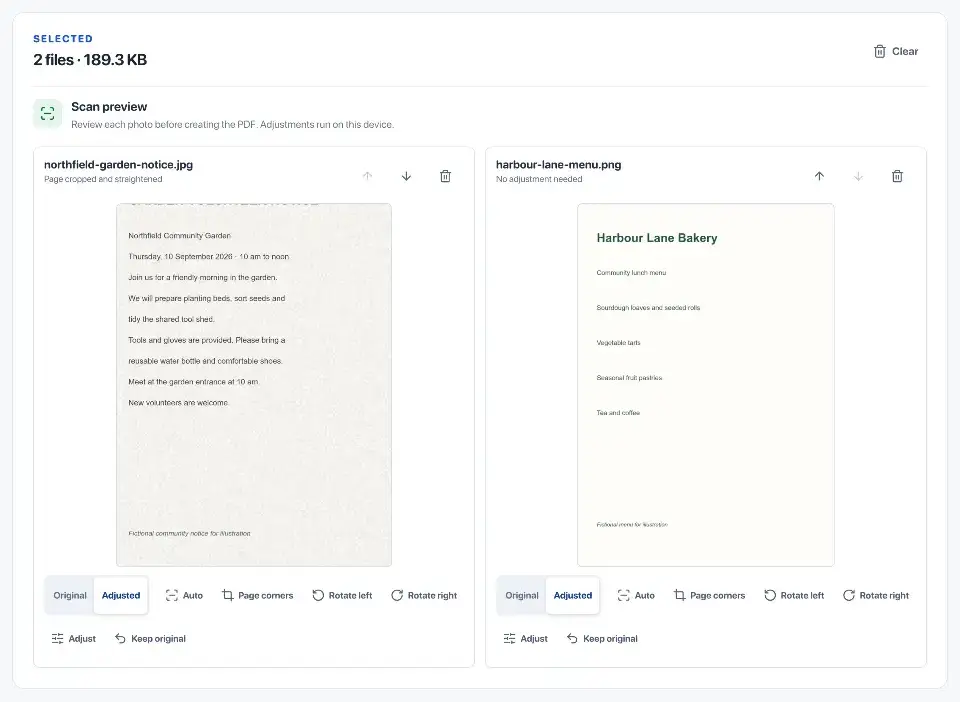
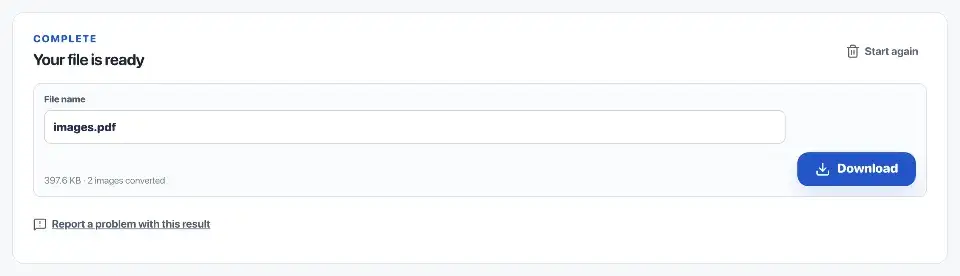
A phone's document-scanning app can save a PDF directly. If you have separate photos, Rebuildfree's JPG to PDF tool accepts JPG, PNG and WebP images. Arrange them, review the crop and orientation, then choose an image-only or searchable PDF. Export HEIC photos as JPG before adding them.
Open the finished PDF and check every page, its orientation and the page count. If you added OCR, search for a name or reference number and compare copied text with the image. Keep the photos until you have checked and saved the PDF.

Official sources
Sources checked on 30 September 2026 for the technical and procedural details cited in this guide.