
How to make a scanned PDF searchable
OCR adds text behind the picture of a scanned page so you can find and copy its words. The page can look right even when that hidden text is wrong, so check both.
Check whether the PDF is already searchable
Open the PDF in a reader and search for a distinctive word from the page. Copy a sentence into a text field. If the pasted text matches the page, searchable text is already present there.
Test several pages before deciding that OCR is unnecessary. One page may have usable text while another is only an image, and existing OCR can miss numbers or accented characters.
Understand the OCR layer
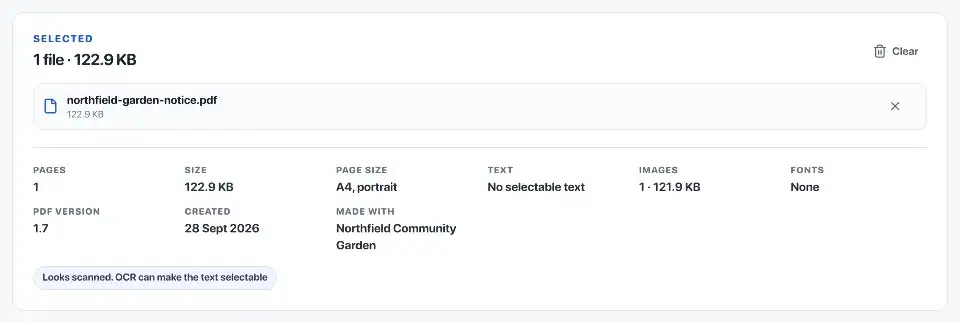
OCR, or optical character recognition, reads the letter shapes in the scan. It keeps the page image and adds recognised words behind it. Search and copy use those words, including any recognition mistakes.
Adding this text does not turn the page image into editable paragraphs. It also does not make the whole document accessible: a screen reader needs meaningful reading order and structure, such as headings and table labels.
Prepare the scan and choose its language
Turn sideways pages upright and straighten sloping text if you can. If a page is blurred or has glare over the words, take a clearer scan. Avoid strong image filters that remove faint punctuation or handwriting.
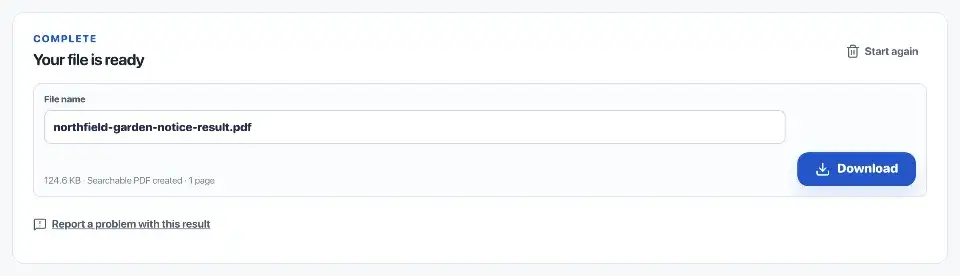
Open OCR PDF, choose the scan and select the language that matches its text. Run OCR and save the searchable copy. Mixed languages, handwriting, unusual fonts and reference codes can still be misread.

Check the hidden text layer
Search for a word near the start, middle and end of the document. Copy a paragraph and a few numbers. On a page with columns or a table, check that copied text follows the order you would read it.
Compare important values directly with the image. For example, a copied total of 180.00 is wrong if the page says 130.00, even though both look like reasonable amounts.
- Names, dates, amounts and reference numbers match the page.
- Words split across lines are copied correctly.
- Text from columns is copied in reading order.
- Invisible text is removed when content is permanently redacted.
- The PDF opens and searches in another reader.
Manage file size
The page images usually take up far more space than the OCR text. If the new file is too large to send, compress a separate sharing copy and check it again: compression can blur small print or remove searchable text.
Avoid repeatedly turning the PDF into images and running OCR again. That can lose existing text, links and form fields without improving recognition.
Save the source and searchable copies
Keep the original scan and use a distinct filename for the searchable version, such as minutes-searchable.pdf. Reopen that file in another reader to confirm that search and copy work after saving.
If the document is a record you will keep, note the OCR language and any pages or values you corrected. The scan remains the reference when recognised text is uncertain.
Official sources
Sources checked on 30 September 2026 for the technical and procedural details cited in this guide.