
How to reduce PDF file size
Choose how much detail you can afford to lose before compressing a PDF. A readable copy that fits the recipient's limit is more useful than the smallest possible file.
Find out what the PDF contains
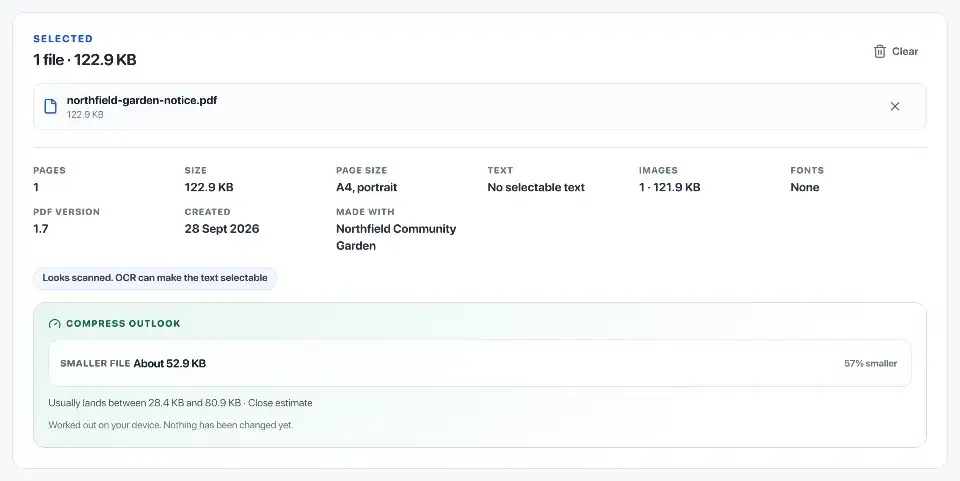
Try selecting text and zooming into a page. A digital PDF stores text and drawings separately; a scan usually stores a picture of each page. Large photos and scans often account for much of a PDF's size.
Note what must still work after compression. You may need selectable text, a fillable form or clear photographs as well as a smaller attachment.
Keep the source file
Keep the original and save the compressed copy under a different filename. For example, keep report.pdf for your records and use report-email.pdf for a smaller attachment.
A copy for reading on a screen may tolerate lower-resolution images. A file for printing or keeping as a record may need finer detail. Check any size limit before choosing the settings.
Start with Balanced compression
Choose the PDF in Compress PDF and start with Balanced. Rebuildfree first tries to reduce wasted space while keeping the PDF's text and other objects. Smaller mode gives file size more priority.
Either mode may turn whole pages into compressed images if that is needed to shrink the file. This can remove selectable text, links or forms, so read the result summary. If the tool cannot produce a smaller file, it returns the original.

Compress scanned pages
For scans, reducing image size or quality can save space, but small letters and decimal points may blur. Faint handwriting, pale highlighting and coloured stamps are easy to lose.
If Balanced does not reduce the file enough, try Smaller on a separate copy. Compare small text at normal reading size and zoom in on anything faint or coloured before deciding which version to keep.
Check the downloaded PDF
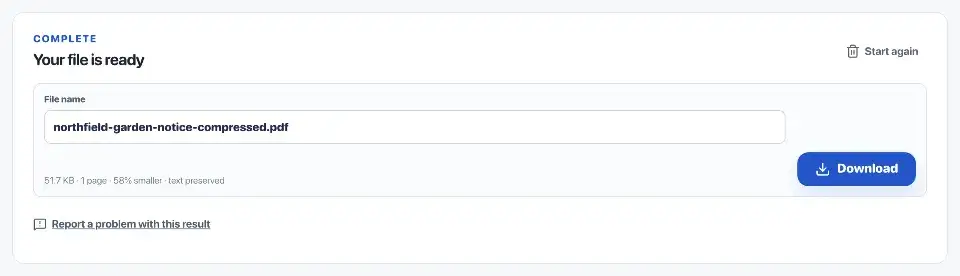
Open the actual download in a PDF reader. Check the page count and look at a page with small print, a photograph and any faint marks. Read a few dates and amounts closely; a missing decimal point can change their meaning.
If the original was searchable, search and copy a sentence from the compressed copy. Test links and forms you need. For a long document, sample the beginning, middle and end, and check every page whose detail matters.
- Every expected page is present and readable.
- Small text and punctuation remain legible.
- Important colour, signatures and marks are preserved.
- Searchable text, links and forms work where required.
- The result is smaller than the source.
Stop when further compression causes loss
Some PDFs are already compact. Compressing them again may blur images for very little saving. If the new copy is harder to read, use the original or a less aggressive setting.
Remove pages you do not need, split the document into sections or use a file link if the recipient accepts one. Do not discard a readable original just to meet an attachment limit.
Official sources
Sources checked on 30 September 2026 for the technical and procedural details cited in this guide.