
How to edit text in a scanned PDF
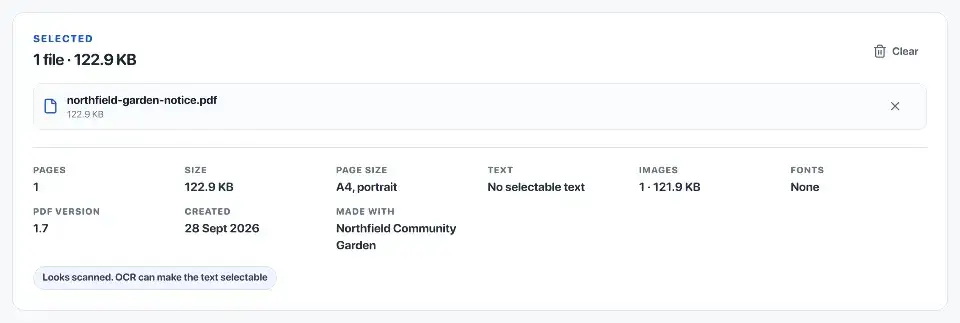
Try selecting a sentence to see whether the PDF already has usable text. If the visible words are part of a scan, recognise its printed lines before editing them.
Try selecting and copying a sentence
Open the PDF in a reader, search for a word and copy a sentence into a text field. If nothing can be selected or found, the page is probably a picture of the document rather than stored text.
A scan may already have invisible text added by OCR, short for optical character recognition. That makes search and copy possible, but the words you see are still part of the page image. Check more than one page: a PDF can contain both scans and digital pages.
- Digital PDF: text is stored separately from images.
- Searchable scan: a page image with recognised text behind it.
- Image-only scan: a page image without searchable text.
Understand what OCR changes
OCR reads the shapes of letters and turns them into text. It can mistake a zero for the letter O, miss faint punctuation or read columns in the wrong order. It does not recover the original document's fonts, tables or form fields.
In Rebuildfree's PDF editor, you can recognise printed lines and then edit or replace them. Compare the recognised words with the scan before changing them; an OCR mistake can look plausible.

Choose search, editing or Word conversion
If you only need to find or copy words, use OCR PDF to add searchable text. To change wording on the page, open the PDF editor and edit existing text or recognise printed lines. To rewrite longer passages in Word, use PDF to Word and choose editable text rather than a copy made from page images.
Tables, forms and handwriting need closer checking. For example, a table can look correct while its copied cells appear in the wrong order. Keep the scan as a reference.
- Find or copy words: add searchable text with OCR PDF.
- Change existing digital text: open the PDF editor.
- Change printed words in a scan: recognise the lines in the editor first.
- Remove private information: use redaction; covering text with a white box can leave it readable underneath.
Work from a copy
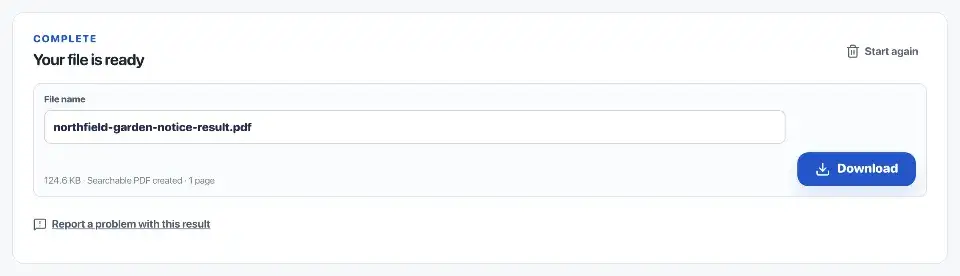
Keep the original and save your changes under a different filename, such as letter-edited.pdf. After removing private information, search for the removed words and try copying from that area to check that they are gone.
Rebuildfree processes the PDF in your browser. If you use another editor for a confidential document, check whether it uploads the file.
Check the exported file
Open the saved PDF in another reader and inspect each changed area. Check that longer replacement text fits, no neighbouring words were covered and the page edges are intact.
Search for a changed word and copy the line containing it. The visible wording and copied text should agree. Check names, dates and amounts against the original, especially where a single character would change the meaning.
Check tables and columns separately
For a table, check that each figure still belongs to the correct row and heading. For a page with columns, copy a paragraph from each column and confirm that the text follows the intended order.
A plain-text export cannot show all these relationships. If the edited document contains important instructions or figures, ask another person to check the changed passages before you send it.
Official sources
Sources checked on 30 September 2026 for the technical and procedural details cited in this guide.